Gmail, the most popular email program, has just improved email attachment feature. Formerly, user had to attach each file one-by-one. To attach many small file, not only it takes more time, it is boring (in my opinion).
Now, Gmail has added a feature recently. Now you can attach more files at a time. If all the files are in a queue, then select first file and press Shift key and click on last file. OR if the files are not queued, then press control key and keep it pressed and go on clicking the files you want to attach. It will save your time. Not only that now it shows a progress bar also. Google has once again prove that it is working for us to make the surfing experience an enjoyment.
-----------------------------------------
You can't attach .exe or any program files to email for security purpose. Here is the trick (assumed you are using Word 2007)
1. Compress the program files into zip file format.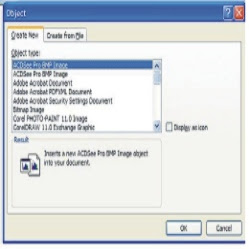 2. Open Microsoft Word or Excel (any version that support embedded object).3. Click to insert menu.
4. Click Object button under the text ribbon.
5. Click Tab -Create from file.
6. Uncheck both the boxes -A) Link to file and B) Display as icon.
7. Browse to select the zipped program file.
8. Click Ok.
9. Save the file.
Exit Word.Attach the word document as a normal attachment.
Few precautions while using ATM may save you from running into a trouble.
- Observe the surroundings at the ATM location before conducting a transaction.
- Skimming devices are card readers placed on an ATM close to or next to the actual ATM card reader. The devices may even be mistaken for the actual ATM equipment. It's important to be observant and take precautions if the ATM equipment appears to be modified or to have unusual instructions for its use.
- Do not use ATM which is too isolated.
- Never use an ATM if there are messages or signs indicating that screen directions have been changed.
- To block the view of others stand very close to ATM and shield keypad, so no one can observe you entering the PIN.
- Look for possible fraudulent devices attached to the ATM, if anything found suspicious, use another ATM.
- Never allow other person or even the watchman at the ATM to enter your PIN.
- Have your card ready, to minimize the time you spend at ATM.
- To use an ATM during night time, try to keep someone, you trust, with you.
- Do check the monthly bank statement.
- Don’t store the magnetic strip on the back of your ATM card against the magnetic strip of another credit card in
your purse or wallet. It will corrupt the strip and make your card unusable. - If you think someone is following you after leaving ATM, find a suitable place where no one can attack you.
- If you see poor lighting or other potential hazards at ATM, avoid using that ATM and report to the Bank.
- Your ATM card is the same as cash, so make sure you keep it in a safe place. Keep your PIN a secret and don’t
disclose confidential information about your card over the telephone or the Internet. Note, you need not tell your PIN to operator at customer care center even if the operator asks your PIN. DO NOT EMAIL OR SMS your PIN to anyone, it may be hacked. DO NOT WRITE IT ANYWHERE, MEMORIZE IT.
- Do not use ATM where you may not get receipt of the transaction (may be due to lack of paper in the ATM). Get receipts of all your transactions and maintain them until you compare with the bank statement, because this is the only proof of your transaction and without that you have to accept the bank statement.
- Now most of the banks SMS on the mobile registered with the bank, after any transaction, above amount preset by you, at ATM. Set the amount, while filling the form, to a small amount say Rs. 1,000. So if your card is lost or stolen and you don't know, you will get message whenever amount more than Rs. 1,000 is withdrawn by someone else.
- If your card gets jammed, retained by the ATM, or lost, report this immediately to the Bank using the phone number posted on the ATM.
And this I have read on some other blog (I can't recall), I don't know, this facility is given in India or not, but it is very useful .....
If you are ever forced by someone to withdraw money out of your ATM, enter your PIN reversed i.e. if your PIN 5678 then enter PIN as 8765. The ATM will give the cash demanded by you, but will automatically recognize this as a plea for help and will alert the police and thief will not know it.
Mindlogicx Infotech Ltd., an R & D based technology company has launched their innovative service portfolio called www.jobready4u.comThe portal initiative creates awareness of opportunities available in the industry and on the skill sets required to tap these opportunities. This site is a logical extension of Mindlogicx's GradFirst - its online finishing school, an initiative that aims at reskilling and upskilling skill sets of students and make them "Job Ready". The job portal is designed to assist final year graduate students in getting gainful employment of their choice with GradFirst hand-holding the students to polish and fine tune their skills sets and increase their employability quotient. Another salient feature of the job portal is that there would be a virtual placement officer in the virtual placement cell assisting GradFirst students in getting employment that suits their profile.According to Suresh Elangovan, managing director and CEO, Mindlogicx, " Job Ready portal is the answer to the unanswered questions of many hundreds of thousands of graduates who are waiting to be employed . It is the answer to the country's unemployment and under employment problems by diligently addressing the growing demand of industry oriented skill sets."He adds that it is the company objective to play the role of a facilitator between the two dominant forces - industry and academic institutions, that are responsible for the economic and social development of the country in a knowledge based eco system. The industry will be able to derive increased supply of job ready graduates with the right skill.
RapidShare :
Users can upload mega files.
BharatStudent :
Connecting young Indians worldwide.
MoneyControl.com :
MoneyControl.com is India s leading financial information source. It s the official site for CNBC TV18, and provides news, views, and analysis on equity / stock markets, commodities, personal finance, mutual funds, insurance and loans.
imdb.com :
Features plot summaries, reviews, cast lists, and theaters schedules.
ImageVenue.com :
World's most popular free image hosting for bloggers and message board users.
Raaga.com :
Hindi, Tamil and Telugu songs.
IndiaGlitz.com :
Complete coverage of Hindi, Tamil and Telugu movies. Get the latest news, trailers, galleries of stars and movies, download wallpapers, reviews, previews and much much more.
About.com :
Guidance, not guess work.
masalatalk.com :
Chat about Bollywood, movies, and music.
Read Other Articles :
If you enjoy this, do not forget to write a comment......
Trick :
Open any website with a picture.
Clear the contents in the address bar.
and paste there following codes.
javascript:R=0; x1=.1; y1=.05; x2=.25; y2=.24; x3=1.6; y3=.24; x4=300; y4=200; x5=300; y5=200; DI=document.getElementsByTagName("img"); DIL=DI.length; function A(){for(i=0; i-DIL; i++){DIS=DI[ i ].style; DIS.position='absolute'; DIS.left=(Math.sin(R*x1+i*x2+x3)*x4+x5)+ "px"; DIS.top=(Math.cos(R*y1+i*y2+y3)*y4+y5)+" px"}R++}setInterval('A()',5); void(0);
Press Enter !
Enjoy the result.
Other Articles :
Here today I will show you 2 - 3 simple tricks which I think are very useful. Tell me what do you think and your experience thro' comment below.
Try this.
Bookmark any page (in Mozilla Firefox), say http://indinformation.blogspot.com (this page). Go to Bookmark, select the http://indinformation.blogspot.com and press right click and then go to properties from the pop up menu. In the keyword field type a word say "Articles" and press "OK".
Now whenever you want to visit the page, just type articles in address bar of Mozilla Firefox and hit enter.
If you are using Internet Explorer then follow following steps.
All other steps are the same (In Internet Explorer, it is Favorites instead of Bookmark) and go to properties. Field "Shortcut keys", by default is "None". Press any letter say "A" then the field will show you Ctrl + Alt + A press Apply and then Ok.
Now whenever you want to visit the page, press Ctrl , Alt and A together.
____________________________________________________________________________
 To save a screen shot in a file, which is useful to show demo, follow the step below :
Press Print Screen, which is third button from the "Num Lock " light on your keyboard.
Now the photo copy of the screen is saved to your clip board.
Now open a Word file or any photo editing package and paste it in a file.
Save the file.
That's all.
Did you like it or dislike it ? ........Post a comment.
Other articles :
 When you search anything in Google, you get many sites. But sometime it happens most of the sites are irrelevant. So to search specifically, few tips are given below, which may be useful to you. May be you may know some tips, but you will find some tips which you don't know.
For simplicity and easily understanding what you should type in search box we have given quotes, but you have to type without quotes, unless indicated.
- To find one word or another or both use operator OR use the "|" pipe symbol (Shift + backslash). e.g. To find share or stock type "Share OR Stock" or "Share | Stock"
- When you use a "+" sign, the result will definitely contain the word, when "-" sign is used, the results will omit the word and when "~" is used the result will include synonyms of the word. e.g. "+stock tips" will include pages with word stock then it may not show you beauty tips. "stock tips -share", this will show you pages with word stock or tips but not with word share. "~stock tips" will show you pages that contain stock or share (synonym of stock) or tips. If you want to search pages with all the terms in a phrase then put the phrase in quotes. e.g. "Stock tips" (with the quotes) will show you pages with both the words stock and tips.
- To search pages with words private or privacy, you may type "priva*", so that it will show you pages with words including "priva".
- Use Google as calculator and it is faster than opening calculator from your computer. Use +, -, * , / and parentheses to do simple calculation. e.g. just type 25*5 in the search box to get 25 X 5 = 125.
- Use Google as converter of units or currencies. e.g. type "10 meters in feet" in search box or type "80 INR in US $" to get the conversion.
- You can search any page including number in a range. To search "best books 2006..2008" will show you pages with best books in years 2006 or 2007 or 2008.
- To search any term within a particular site then type type "site:" followed by URL and the term. To find term computer in "http://Indinformation.blogpsot.com" type "Site:http://indinformation.blogspot.com Computer" in the search box.
- To find a particular file type like word document, excel worksheet, pdf files, type "filetype: pdf" will show you only files with extension pdf.
- To get time of any city say New York type "time New York" in search box.
- To know weather of a city say Mumbai, type "Mumbai weather" in search box.
More Articles :
Do you know that you can type special characters like ♥, ♦, ♣, ♠, ☺, ☻ etc, and you can format them as we format any fonts i.e. you may change their colour, size etc.
If you think that it may be difficult to type or special knowledge is required than you are wrong. When you combine both characters and special characters tactfully, you will get fantastic results.
To type special characters is very simple. Press Alt key on the keyboard and then type a number of 1 to 3 digits and then release the Alt key, you will get a special character. e.g. to type a heart ( ♥ )press Alt and type 3 and release Alt key. This can be done in word, excel etc.
For your reference the required number to type a special character is given next to it.
☺- 1
☻- 2
♥ - 3
♦ - 4
♣ - 5
♠ - 6
» - 175
« - 174
░ - 432
▒ - 433
▓ - 434
█ - 475
Ω - 490
╬ - 206
Tip : Similar special characters will have the next or previous number like 174 and 175 above.
Let me know that you liked or disliked this article. Add a comment. If we get good response, we will give you more such tricks.
More articles :

If you feel your computer has become slower than it was, then it may be facing a problem. Try this, it may solve the problem. Before going to the solution of the problem, let's understand the problem first.
Whatever work we do on computer, we save it in different types of files. After saving the file, whenever we reopen it and save again after changing its content. When we edit a file. its size varies. may be more or less than original size. If the file-size is smaller than the previous, then the given space for the file remains partly blank as the new file size can not occupy the full space. When we create a new file, the computer utilizes such small spaces to store new file.
If the edited file bigger than the file can not be stored fully on the same space computer divides into parts, one of which is saved on the space and other parts are saved somewhere on the hard disk.
Thus any file may be saved in parts or technically known as fragments. When we open a file, different parts of the file are searched and collected together and then displayed on our screen. It takes time to collect the information and display, though in fractions of second.
So now you know, if we can put all parts of a file together, then we can speed up the computer. To put then together or defragment files. Fortunately with Windows, you get the software to defragment.
To defragment follow the procedure below :
Go to : Start >> All Programs >> Accessories >> System Tools >> Disk Defragmenter
Select the hard disk drives like C or D and click defragment.
Hopefully speed of computer will increase.
Other Articles :


 Posts


